Welcome to Bible Gateway!
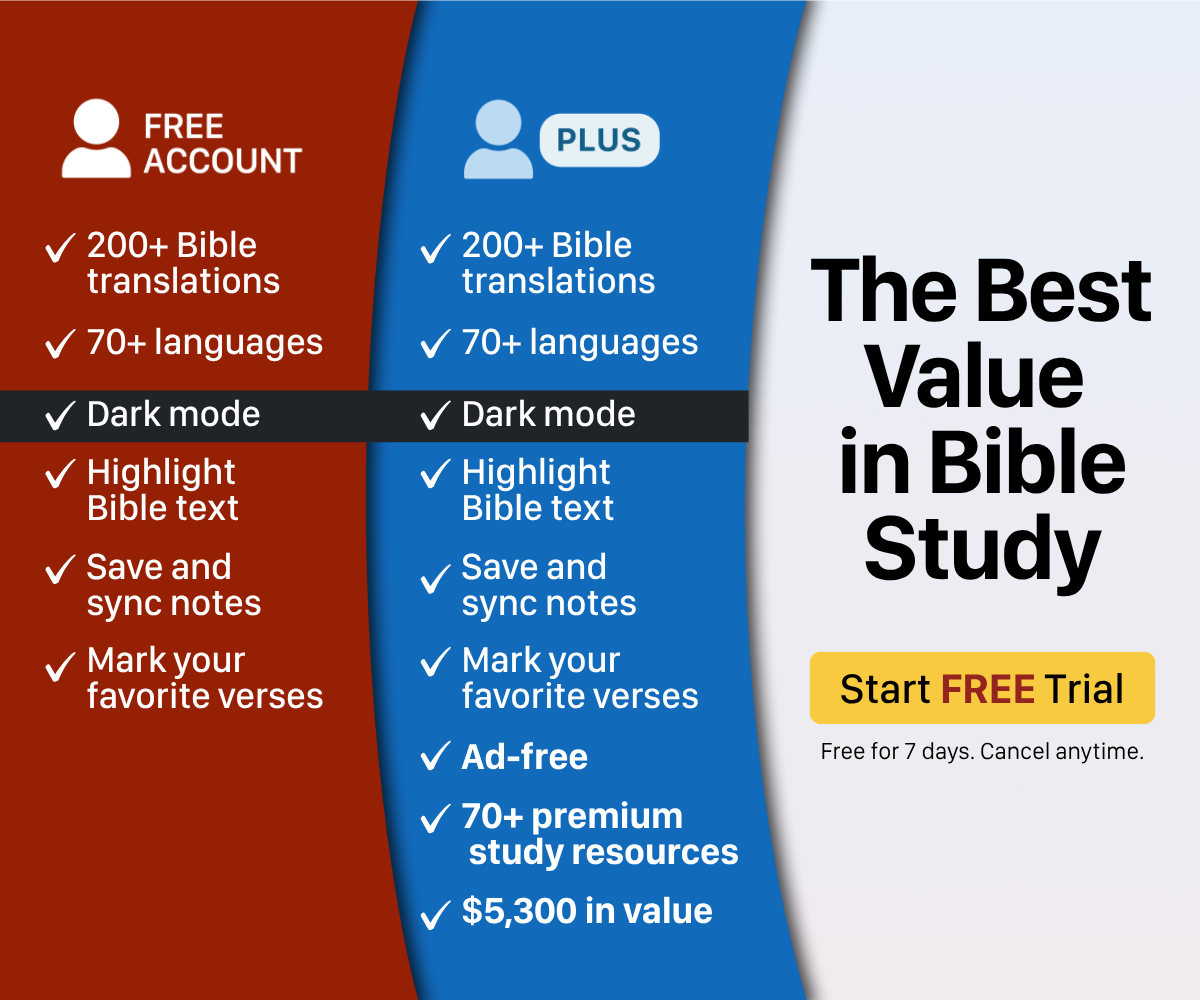
On Bible Gateway you can read more than 200 versions of the Bible in over 70 languages. Whether you're opening Scripture for the first time or returning to a favorite passage, this page covers the best way to access Scripture.
What's New
- Dark mode is now included. Switch it on from the top of the header near the login link, or from the footer on mobile web.
- The search bar at the top now suggests verses and topics as you type.
- Chapter Overviews, drawn from 5 trusted study tools, are now available to begin deeper study.
Quick Start Guide
The home page is the perfect starting point. There you'll find the Verse of the Day — create a daily habit around reading the Bible and launch your study from there.
Know the verse or range of verses? Type them into the search bar and hit enter. Standard abbreviations, verse ranges, and multiple verses all work.
- For a single verse, type: John 3:16, Joh 3:16, Jn 3:16, or John 3.16
- For a range, use a hyphen: John 3:1-16
- For multiple verses, separate each with a comma: John 3:16, Ge 22:12, Jn 1:18
Compare up to 5 translations in parallel (side by side), or a single verse in all English or Spanish translations at once (top to bottom).
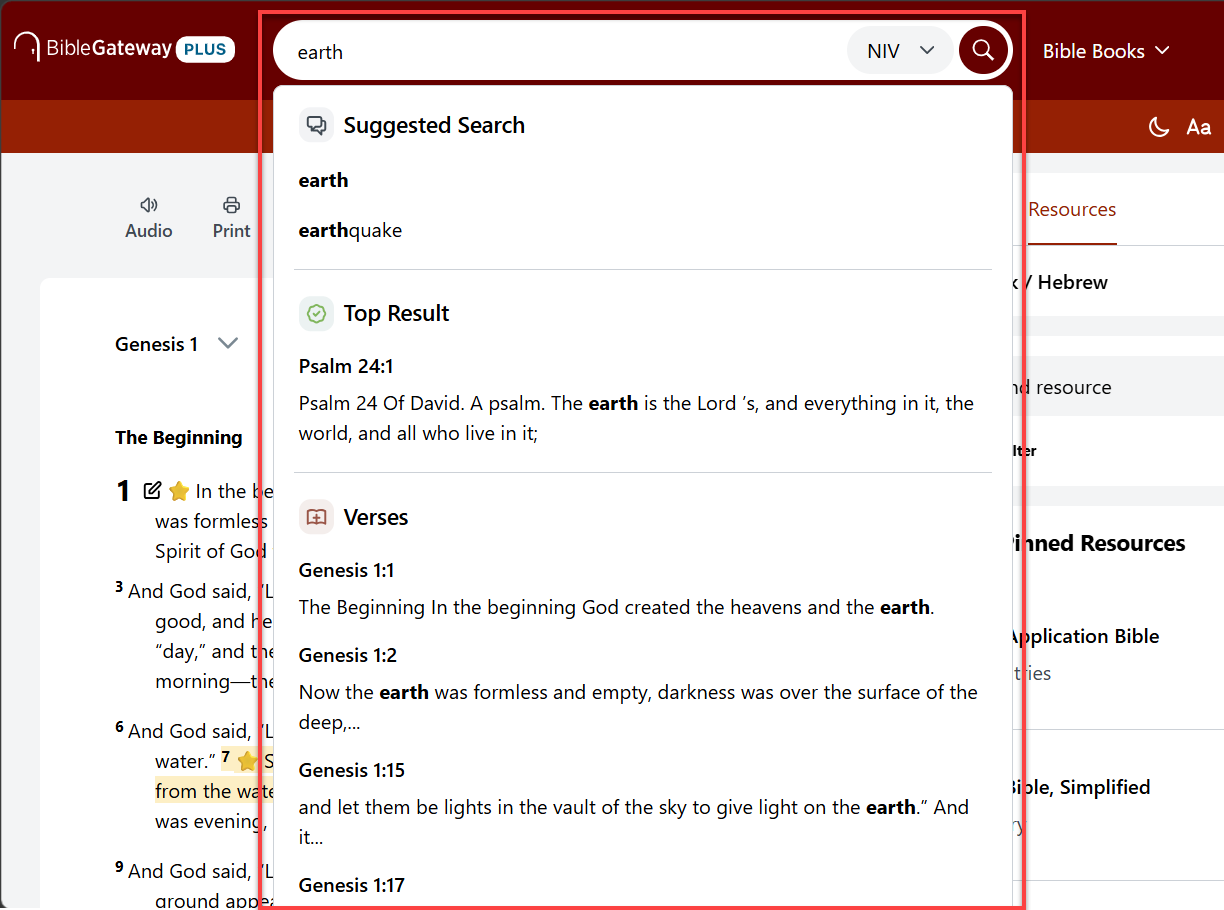
Looking for a word or topic? Type it in the search bar. Suggestions appear as you type to help you narrow in on what you're looking for. You'll see categorized results for Suggested Search terms, the Top Result, and recommended Verses.
To continue studying a theme, open Footnotes and Cross References using the Settings menu above the passage — look for the gear icon. Once open, navigate through the linked verses that appear below the passage.
Want to change your translation? Use the menu above the text you're reading, or update the abbreviated translation in the search bar before you hit the search button. To read in multiple versions, click the parallel icon above the passage to the right.
Ready to read? You have two options:
- Click the Bible Books menu to the right of the search bar, select a book and chapter, and it will open for you.
- If you'd like a guided reading experience, choose Read from the top menu, select Reading Plans, and pick an option.
Reflect on what you've read. With a free account you can highlight verses, bookmark your favorites with emoji reactions, and take notes on what matters. Simply highlight a verse to begin.
Want to go deeper? Use the Insights tab to start with Chapter Overviews. The Resources tab holds resources to amplify your understanding of a passage, from free tools like Matthew Henry's Commentary to trusted resources available with Bible Gateway Plus. That includes over 70 premium resources, ranging from bestselling study Bibles to the scholarship in commentaries, encyclopedias, dictionaries, and Hebrew and Greek resources.
Customize your view by increasing the font size or switching to dark mode, so you can concentrate and read the Bible in comfort.
Complete Guide
Below is a comprehensive tutorial on how to use BibleGateway.com — from finding and reading Scripture passages to doing deeper study. Click any section below to expand it.
New to the Bible?
Learn about the Bible from Bible Gateway News & Knowledge. You'll find engaging articles from Christian thought leaders, our editorial staff, and the latest Bible-related news. Here are a few places to start:
Navigating the Bible
How to find a verse or passage
Type any verse or range of verses into the search bar and press the Search icon. The search form is versatile — you can enter Bible references in a number of formats. For example, it recognizes all of the following:
- Genesis 1:1 (the standard way Bible verses are described)
- Genesis 1:1-10 (a passage with a range of several verses)
- Genesis 1-3 (multiple contiguous chapters)
- Genesis 1-2,5 (more than one chapter, not necessarily contiguous)
- Genesis 1:1, John 3:16 (passages from different books)
Bible Gateway also recognizes most common Bible book abbreviations. Typing Genesis 1:1, Gen 1:1, or Ge 1:1 will all take you to the first verse of Genesis.

How to choose or change your Bible translation
The drop-down menu next to the Search button shows which Bible version Bible Gateway will use when performing your search and displaying the results.
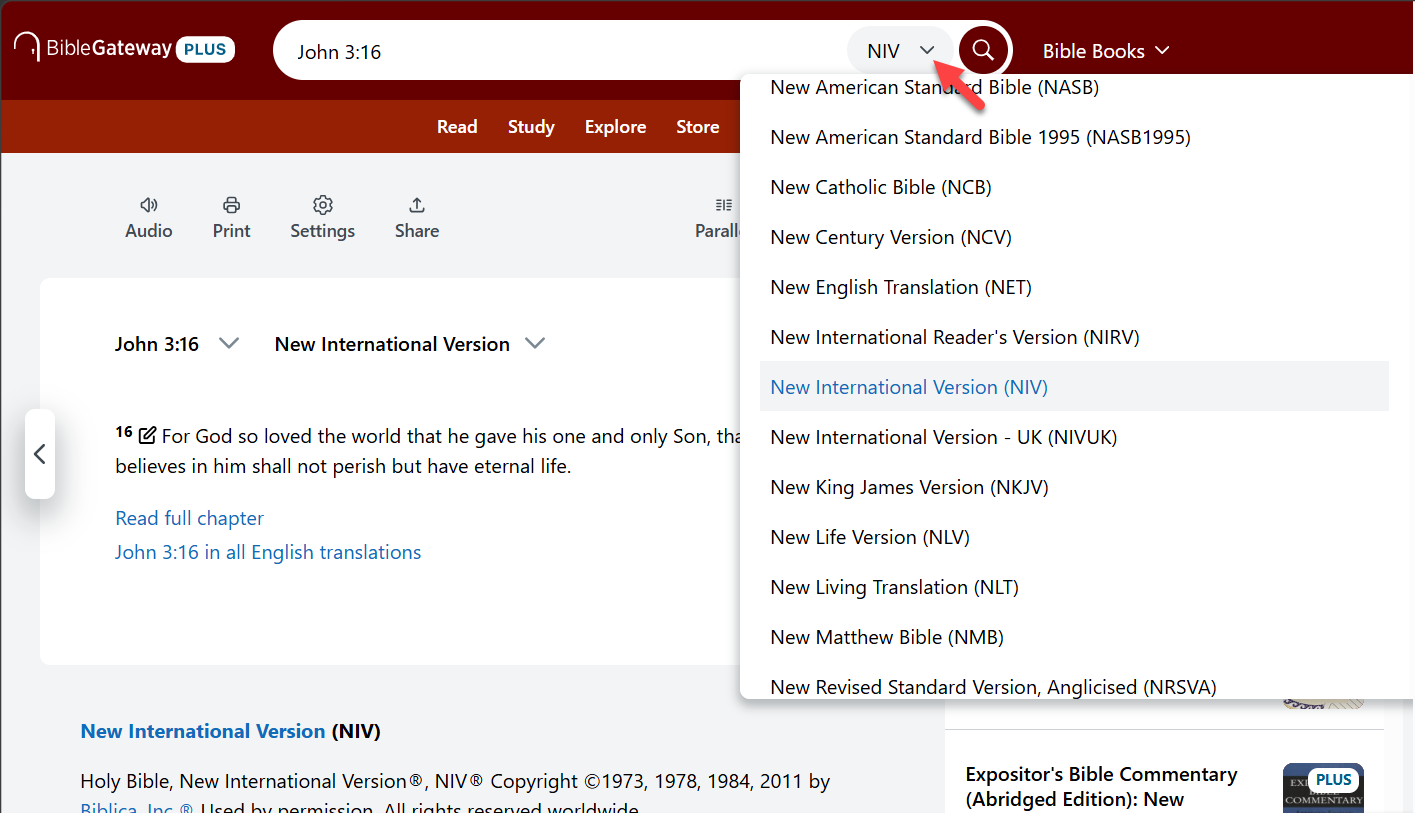
By default, Bible Gateway searches the New International Version (NIV). You can change this by opening the drop-down menu and selecting a different version from the list.
Bible Gateway remembers your selection and will use your last selected version for searches until you close your browser session. To set a version permanently, visit the Preferences page and choose a default there.
How to search for a word, topic, or phrase
The search bar interacts with the Bible in three ways. You can:
- Look up a specific passage, such as John 3:16
- Search for a name, location, or any other keyword in the Bible
- Select or change the version of the Bible you want to read
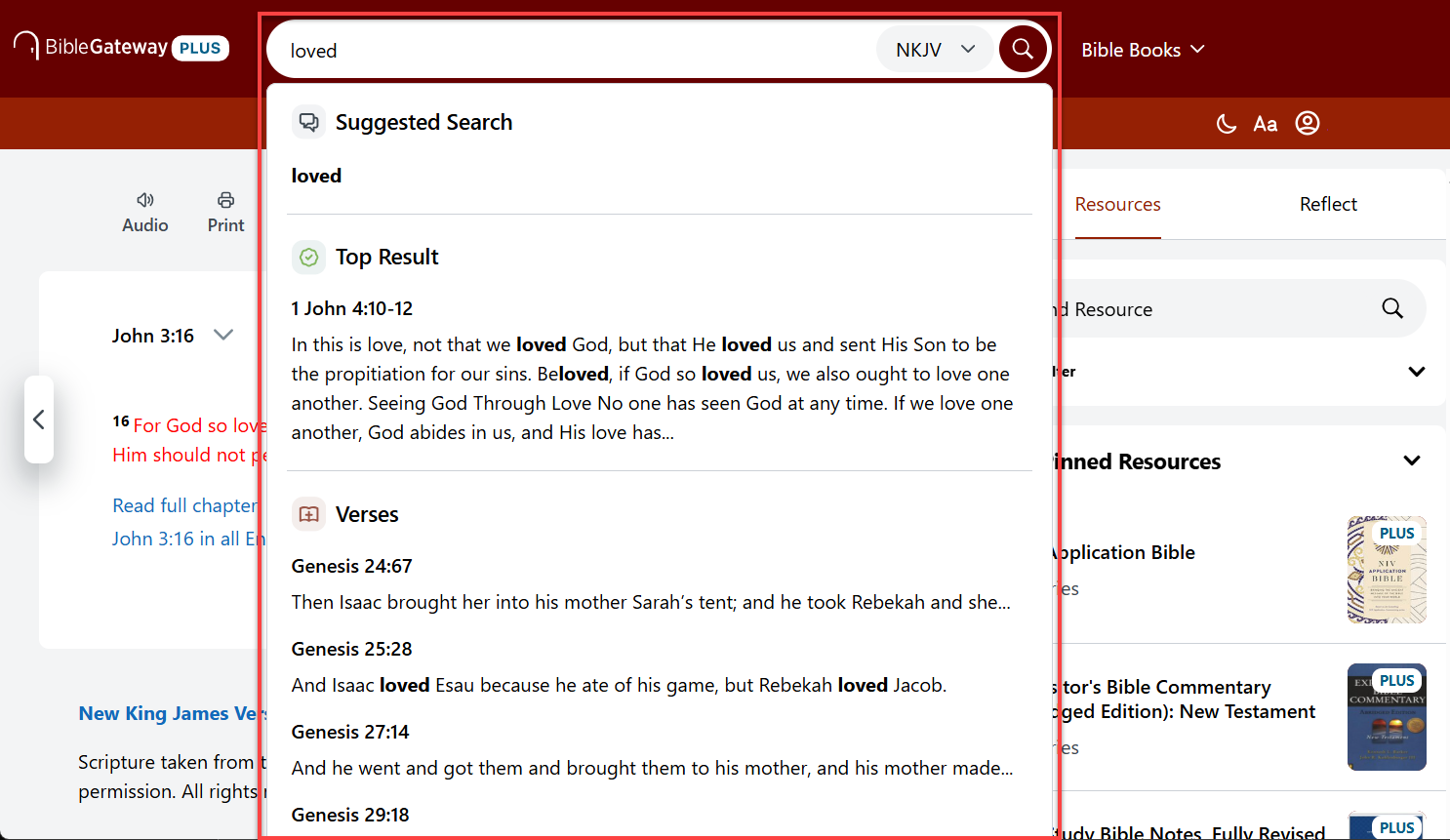
You can also browse and read through any part of the Bible by selecting Bible Books to the right of the search field. This opens a complete list of the books of the Bible. Select a book to see its chapters, and choosing a chapter will update the passage.
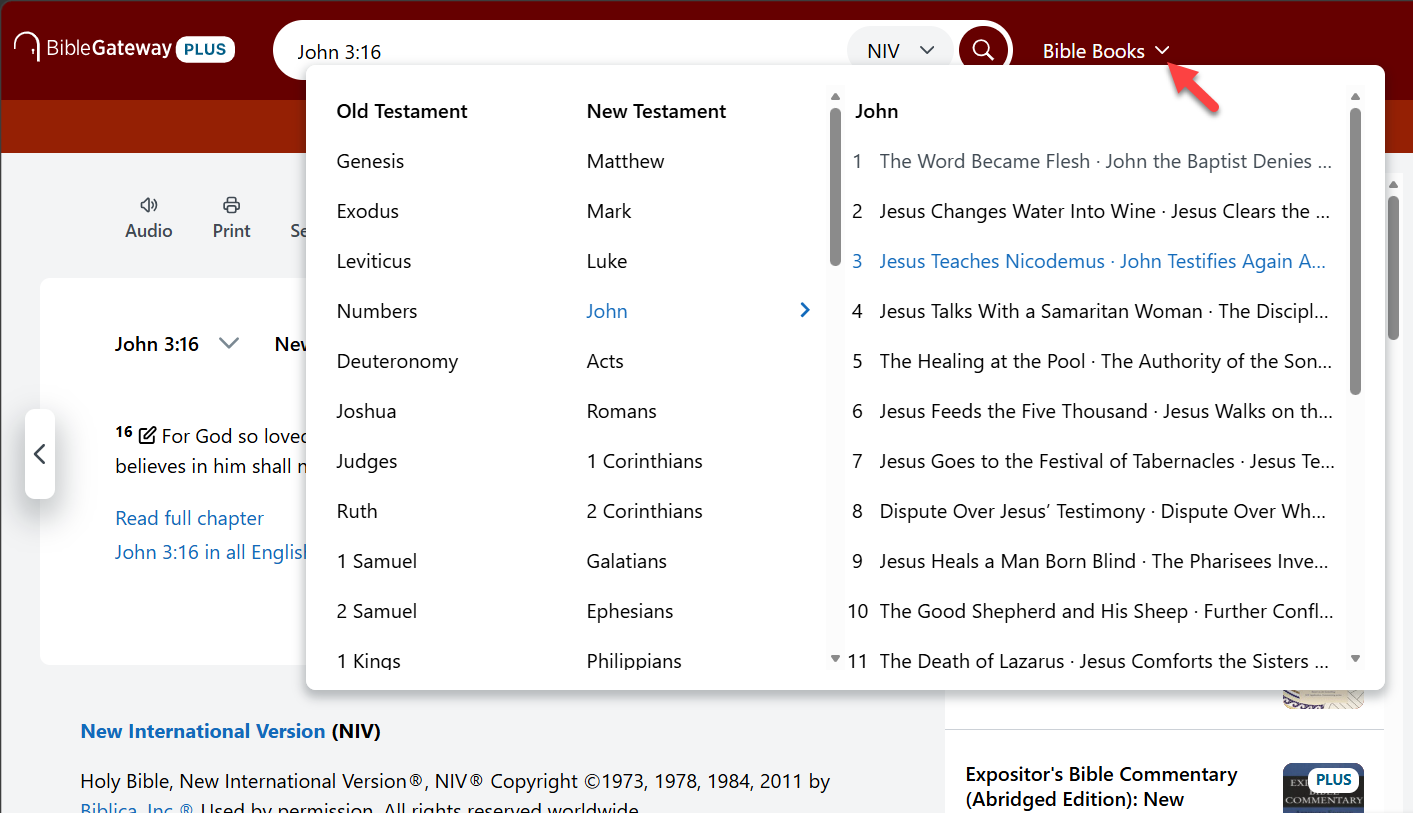
This list shows each book in the version currently selected in the drop-down menu. While the list of books is the same across most versions, it does differ in some translations. Some Bibles on Bible Gateway contain the deuterocanonical books and others do not, and some contain only the New Testament or another subset of the complete text.
Advanced search: Passage Lookup and Keyword Search
To see your search results in several different versions at the same time, or to look up a phrase you can't remember exactly, do an advanced search. There are two kinds:
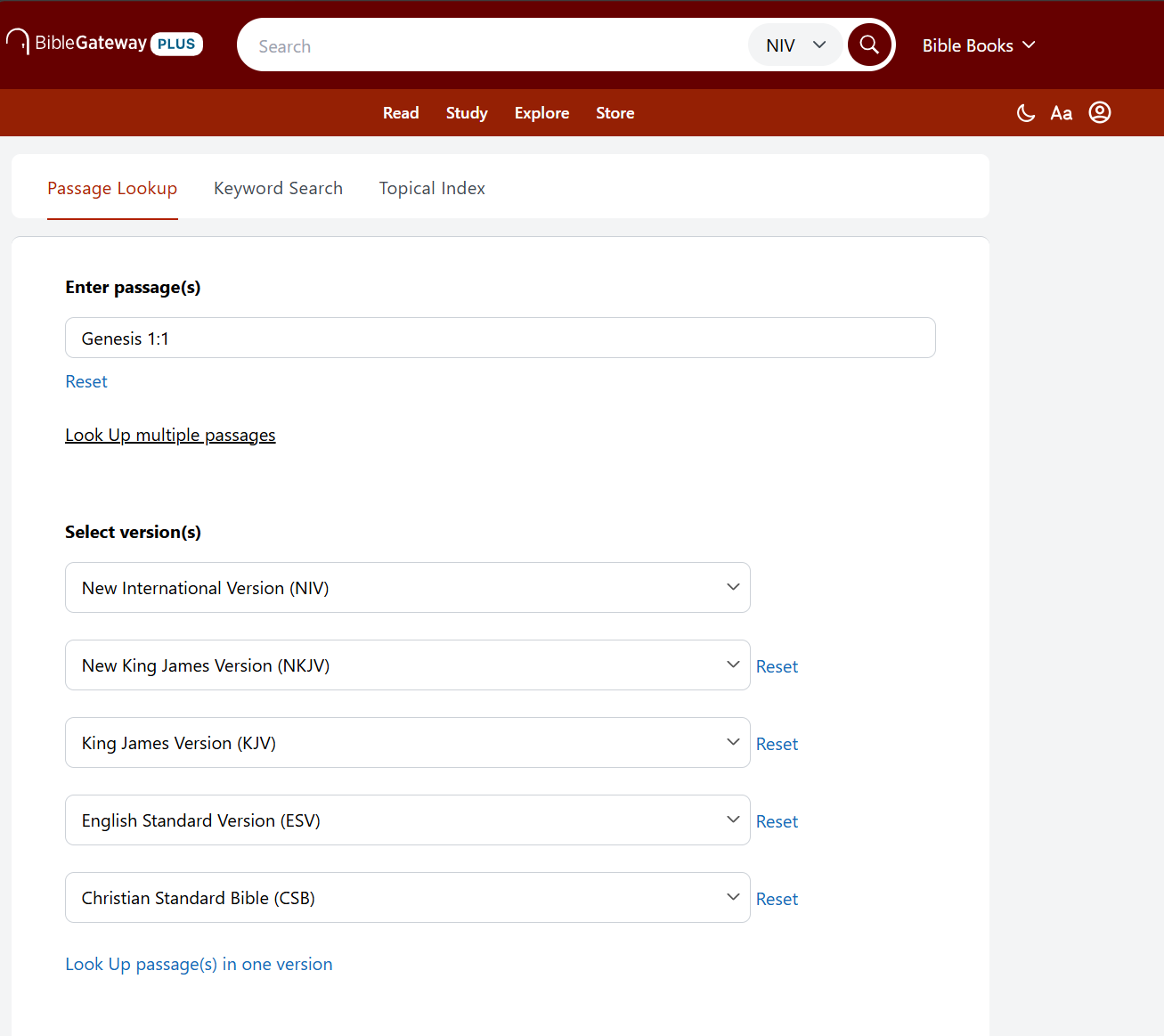
Passage Lookup — Enter the verse or passage you're looking for, select up to 5 translations, then click Look Up Passage.
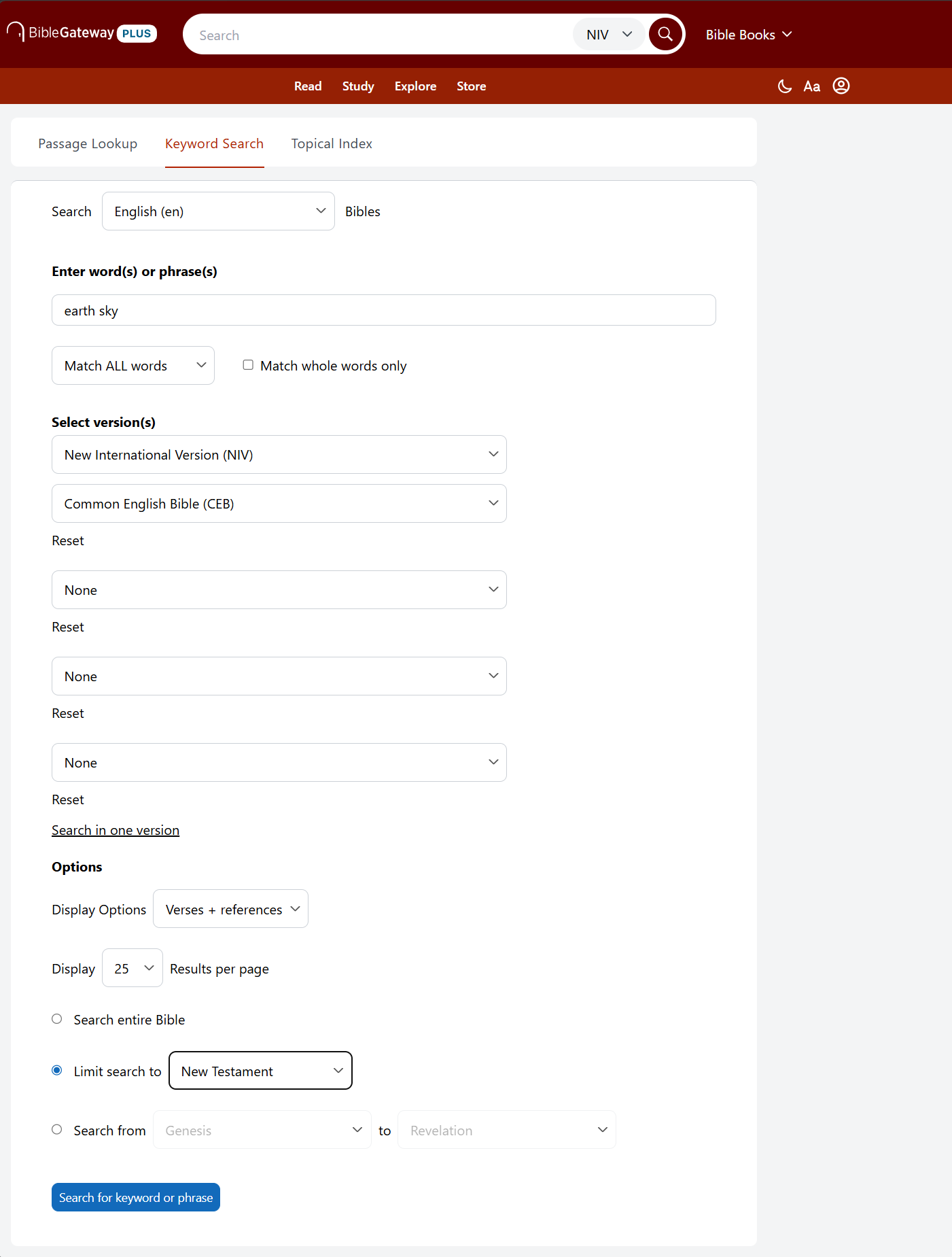
Keyword Search — Enter one or more words, then set it to match ALL words, ANY words, or the EXACT phrase. Select your translation or translations, choose how many results to see per page, and limit your search range if you'd like. Then click Search for keyword or phrase.
How to narrow your search
The search bar also offers suggestions when you can't remember a verse exactly. Type a word or phrase and, before you hit the search button, helpful suggestions appear. You'll see alternate words (for example, "earthquake" when you type "earth"), the top verse containing the word you typed, and other verses containing it, beginning with Genesis. This helps you narrow down the term or verse you have in mind before you reach the search results page.
Filtering search results
Continue to the search results page to narrow down your results. Searching "earth" in the New International Version (NIV), for example, returns hundreds of occurrences.
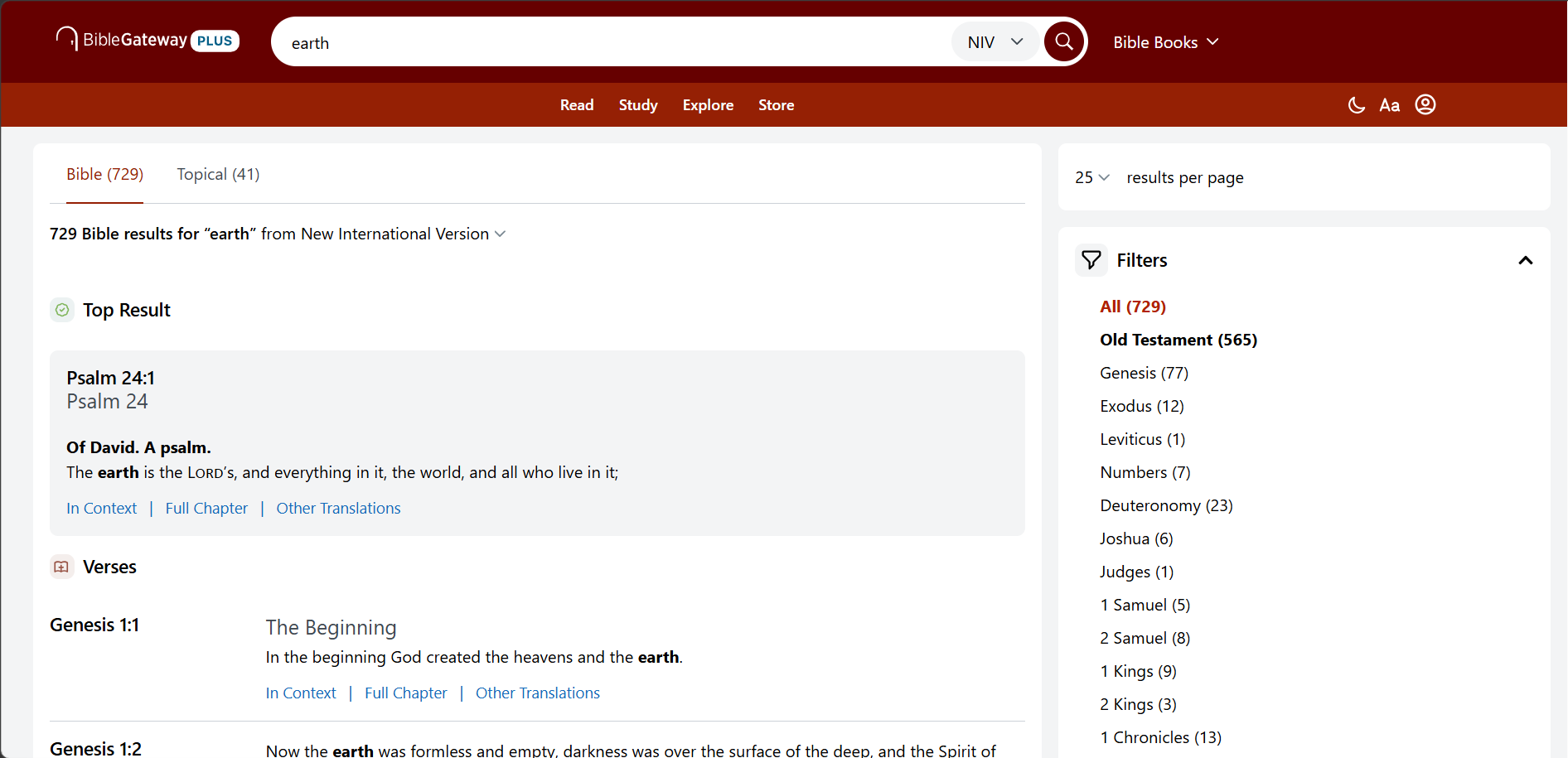
Using the Filters on the search results page, you can first narrow the results to the New Testament. Scroll down and click New Testament to see only the occurrences there.
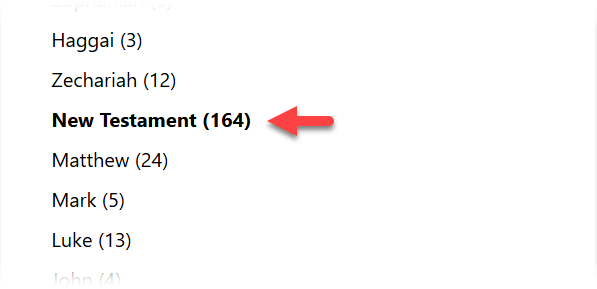
To narrow further — to the Gospels, say — click Matthew, Mark, Luke, or John. Scan through the verses in your results and read each one on its own, or in any of these ways with a single click:
- In Context — the verse along with the one just before and just after it.
- Full Chapter — the entire chapter.
- Other Translations — the verse listed top to bottom in all English translations.

Reading and Personalizing
You'll spend most of your time on Bible Gateway reading Scripture. Once you're on a passage page, you can adjust your settings to customize the experience.
How to customize your reading view
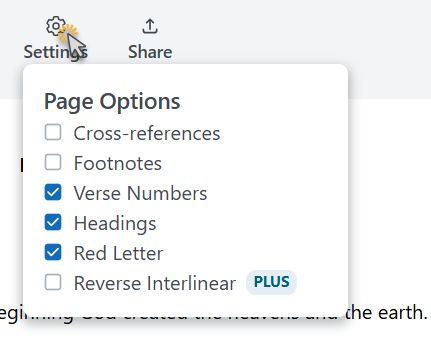
Look for the Settings menu, where you can turn the following page options on or off:
- Cross-references — passages that share themes with another area of the Bible.
- Footnotes — explanations from the translators about how a passage was translated.
- Verse Numbers — turning these off gives you an easier reading experience.
- Headings — these set up the passage you're about to read.
- Red Letter — some translations print the words of Jesus in red. Turning this off smooths the reading experience.
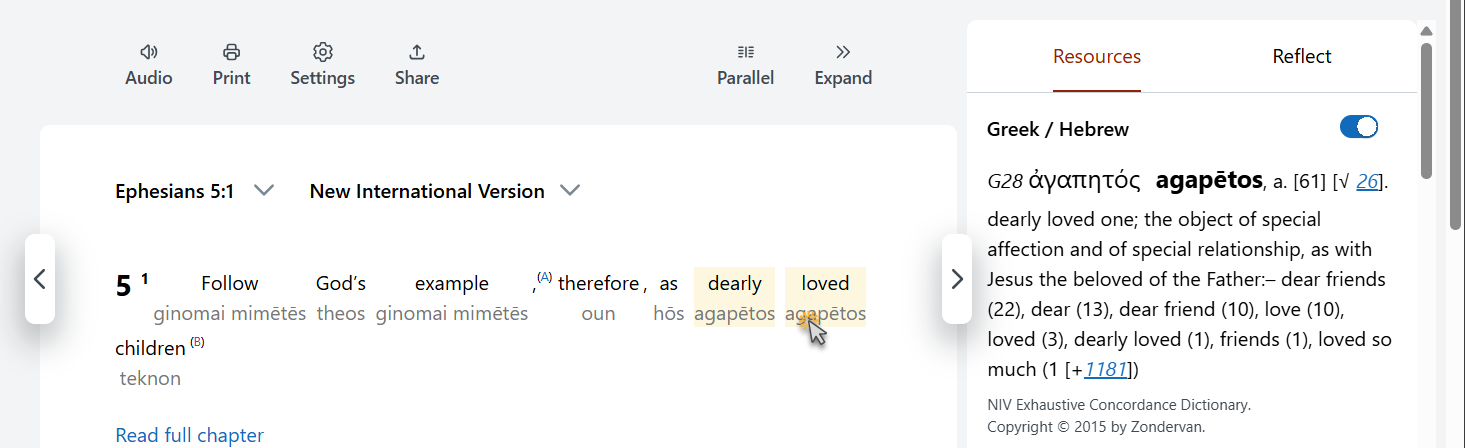
- Reverse Interlinear — in the New International Version (NIV), turn this on to see the transliterated Hebrew or Greek behind each English word. Click a word to explore its definition and better understand the meaning behind the English translation. This feature is available with Bible Gateway Plus.
How to change to dark mode and adjust text size
You can switch between light and dark mode from the top of the window on your computer. In light mode, look for the moon icon at the top; in dark mode, look for the sun icon.


If you're reading BibleGateway.com on a mobile device, look for these settings in the footer instead.
To the right of the light/dark toggle you'll see Aa. Click it and a slider will appear, letting you adjust your font size. On mobile this also appears in the footer, alongside the light and dark mode control.
More from Bible Gateway
Reading plans, devotionals, and other resources
With Bible Gateway you have access to many resources that deepen your understanding of the Bible:
How to Go Deeper
On your computer, BibleGateway.com displays Scripture on the left and tabs that extend your study options on the right. On mobile web, Passage is the default tab. The additional tabs are below.
Insights
The Insights tab provides an overview of each chapter in the Bible. It draws on the study resources available with Bible Gateway Plus and cites each one, and Bible Gateway Plus members can click through to read the articles it's based on. It's a perfect first step toward deeper study.
Resources
The Resources tab includes both free study tools and those available with Bible Gateway Plus. Grouped by type, you'll find study Bibles, commentaries, encyclopedias, dictionaries, and more — each tied to the book, chapter, and verse you're reading, to streamline your study.
To find a specific resource, you can:
- Find resource — search for a resource by name.
- Filter — narrow the list to the kinds of resources you want (study Bible, commentary, and so on).
- Suggested Resources — a starting point chosen for the passage in front of you.
- View All — see everything available for the verse.
Some resources are free to read in full. Others, marked with "Plus," are part of a Bible Gateway Plus membership.
Greek and Hebrew
Available with Bible Gateway Plus in the New International Version (NIV), this lets you access the transliterated Hebrew or Greek behind the English. In the Resources tab, select the toggle at the top of the panel.

Click or tap a word to read its definition and better understand the meaning behind the English translation. Each definition opens automatically to the right.
Reflect
The Reflect tab is where you type, save, and revisit your notes. Record any thoughts or impressions as you read a verse and come back to them later. Saving notes requires a free Bible Gateway account.
How to highlight, react to, and take notes on a verse
With your mouse — or a tap on a mobile device — select a verse by clicking and dragging the cursor. Use the toolbar that appears to:
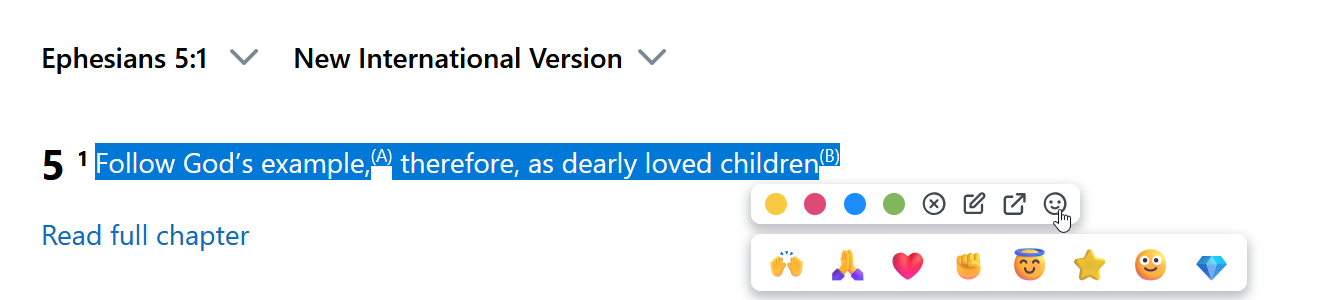
- Highlight — choose one of 4 colors to mark the verse.
- Delete — remove any previous highlighting or notes on this passage.
- Note — open the Reflect tab so you can write about the verse.
- Share — send the verse to someone by copying the link, emailing it, or selecting a social media platform.
- Emoji — bookmark your favorite verses. Select the smiley face icon and choose one of 8 emoji reactions. The verse is saved among your favorites, and your emoji will appear the next time you read it.
Highlights, notes, and reactions save to your account, so they're waiting for you the next time you read. You can also reach them from the Account menu at the top right of your screen.
How to create a free Bible Gateway account
Bible Gateway offers advanced features such as note-taking and highlighting to help you stay on top of your study. To use them, create a free Bible Gateway account and log in to save your work.
Creating an account is free, easy, and gives you access to:
- Reflect, where you can save notes as you read Scripture.
- Highlighting, and bookmarking your favorite verses with emoji reactions.
- Syncing your notes across multiple devices.
Sign up here and follow the instructions.
What's included with Bible Gateway Plus
A Bible Gateway Plus membership upgrades your Bible study experience with:
- Access to 70+ study resources, including the bestselling NIV Study Bible, the popular NKJV MacArthur Study Bible, the NIV Application Bible, the abridged Expositor's Bible Commentary, the Believer's Bible Commentary, the NIV Reverse Interlinear, and much more — all valued at over $5,300.
- An ad-free, distraction-free experience.
- A risk-free 7-day trial.